

 Hobart
FS-200
ScaleHobart FS-200 Self-Service Retail Scale
The Hobart FS-200 FreshServe is a self-service retail scale with a 14-inch touchscreen, product lookup, and label printing. It supports die-cut, continuous, and linerless label stock.
- Voltage
- 100-240 V
- Phase
- Single phase
- Amps
- 1.42 amps
- Wattage
- 170 watts maximum
- Plug Type
- Ground-type plug
Hobart FS-200
7 compatible parts available
Genuine OEM Parts
Sourced from the manufacturer
Canadian Owned
Based in British Columbia
Canada-Wide Shipping
Every province and territory
24hr Quote Response
Answered by a real technician
Manuals & Documents
About the Hobart FS-200
Overview
The Hobart FS-200 is a FreshServe self-service scale for retail product weighing and consumer-facing transactions. A product listing identifies it as a 23-inch FreshServe scale with a 14-inch touchscreen. The FS Series system can store information on thousands of products, including PLU and UPC numbers, pricing, tare, and shelf life, as well as consumer information such as nutrition facts, safe-handling information, expanded text, recipes, cooking instructions, and merchandising graphics.
In self-service mode, a consumer can look up a product, place it on the scale, and print a label or use a barcode or QR code displayed on the screen. The scale can also be operated in standard mode. Self-service features must be enabled in supervisor mode before the scale can be switched into self-service operation.
Key Features
- Touchscreen operation: The 14-inch touchscreen provides access to scale functions, product search, and consumer prompts.
- Product records: The system can hold thousands of product records with retail handling information and consumer-facing content.
- Self-service interface choices: The FS Series offers FreshServe and HT user-interface styles. The manuals describe similar functionality with different graphical designs.
- Product identification options: Consumers can enter a known PLU or search for a product. A barcode scanner and image-recognition camera are available as auxiliary equipment mounted to the post under the display.
- Label flexibility: The printer supports die-cut, continuous, and linerless label stock. The scale automatically recognizes and sizes correctly installed stock when the printer access door is closed.
- On-screen code option: The scale can present a barcode or QR code on the screen for scan-and-go use. The supervisor manual identifies the on-screen barcode/QR function with label type 10072; changing that label type affects what appears on screen.
Specifications
- Manufacturer and model: Hobart FS-200.
- Product type: FreshServe self-serve scale.
- Display: 14-inch touchscreen.
- Operating temperature: 14°F to 104°F (-10°C to 40°C).
- Electrical supply: 100–240 V, 50–60 Hz, single phase.
- Electrical draw: 1.42 amps, maximum 170 watts, as stated in the supervisor manual.
- Power cord: A 9-foot standard cord cap with ground-type plug is specified in the supervisor manual.
- Connections: Two Type A USB 2.0 ports, one RJ-45 Ethernet jack for TCP/IP, and a power/reboot connection.
- Scale resolution: 0.005 lb increments up to 12 lb; above 12 lb, resolution is 0.01 lb. The scale can also be set during installation to use 0.01 lb resolution from 0.0 to 30.00.
- Label roll dimensions: 1.50-inch roll inside diameter, 6.25-inch maximum outside diameter, and 2.25-inch label width.
- Label lengths: 2.375, 3.0, 3.5, 4.0, 4.5, 5.0, 6.0, 6.5, 7.0, 7.5, 8.0, 8.5, 9.0, and 9.5 inches.
- Label stock: Die-cut, continuous, or linerless, as described in the operator manual. The supervisor manual lists die-cut or linerless stock.
- Bowl: Warewash-suitable polymer with a twist-lock attachment.
HT scale labels will not fit the FS scale. The manuals do not provide a scale capacity figure in the supplied material.
Installation & Requirements
The operator manual states that the scale should be installed only by a qualified Hobart Service technician. The supervisor manual also says that installation or moving should be performed by a qualified Hobart Service Technician. The scale operates within the temperature range listed above.
A power cord connects from inside the printer access door. The supervisor manual specifies a 100–240 V, 50–60 Hz, single-phase supply, with a maximum draw of 1.42 amps and 170 watts. It also describes a 9-foot standard cord cap with a ground-type plug. Available communication connections are two Type A USB 2.0 ports and an RJ-45 Ethernet connection for TCP/IP. No clearance or ventilation dimensions are provided in the supplied manuals.
To enable self-service, a supervisor must turn on the self-service feature in the Normal Operations settings. The supervisor manual says that enabling this feature defaults to the HT user interface, and changes must be followed by a reboot to take effect. The scale can then be switched into self-service mode from the home screen.
Operation
Using self-service mode
Self-service mode is intended for consumer operation. The consumer can enter a known PLU or search for a PLU by name, number, or keyword. On units equipped with a barcode scanner, the consumer can scan the product barcode. On units equipped with image recognition, placing an item on the scale presents a list of product options for the consumer to choose from. After selecting the correct product, the consumer can print a label or scan a barcode or QR code shown on the screen. For by-count items, the consumer is prompted to enter a quantity.
The FreshServe interface presents on-screen directions and product categories; the manual says the scale defaults to the Best Sellers group. The language displayed in self-service mode can be changed using the alternate-language button. The HT interface provides similar functionality with a different graphical design. The scale remains in self-service mode after a reboot or power failure until it is deliberately changed to another mode.
Changing modes and rezeroing
To exit self-service mode or rezero the scale, touch the lower-left area of the screen that displays the capacity. The scale then opens the Self-Service Mode Weights and Measures screen. Touch Rezero to zero the weigher when nothing is on the platter. To exit self-service mode, enter an operator ID and select Exit Self-Service Mode, or use a standard USB Supervisor/Service key. The supervisor manual notes that operator ID 1010, with level 1 scale access, is present by default to allow an exit without a USB key.
Loading labels
Open the printer access door and release printhead tension by rotating the red printhead lever counterclockwise as directed in the label-loading instructions. Install the label stock on the hub and route it through the printer according to the stock type. For linerless stock, the manual instructs the operator to secure the stock in place, rotate the printhead lever clockwise until seated, and close the access door. For die-cut stock, the backing paper is routed around the take-up spool and secured with the take-up spool key. Once the roll is installed and the door is closed, the printer automatically sizes the stock and expels several blank labels before it is ready to print.
Cleaning & Maintenance
Cleaning the bowl
The bowl is made of warewash-suitable polymer and attaches with a twist lock. To remove it, grip the sides and gently turn it about 45 degrees counterclockwise, then lift it off. Clean it with a gentle detergent. To reinstall it, align the twist-lock notches on the bowl and scale, then turn the bowl about 45 degrees clockwise until locked into place.
Cleaning the printhead and roller
The supervisor manual recommends cleaning the printhead approximately once a week, or when residue on the printhead or roller obstructs labels. It also recommends cleaning the printhead roller when installing a new label roll. First open the printer access door, remove the labels, release the printhead lever, and check for label stock or adhesive. Rotate the red printhead lever 90 degrees counterclockwise to release tension. Use the scraper from the Printhead Cleaning Kit to remove stuck label stock. Gently rub burnt-on adhesive with the kit eraser, then use 70% isopropyl alcohol cleaner and a kit swab to clean the printhead. Clean the print roller with the cleaner and swabs, and allow both parts to dry before loading labels.
The manual states that cleaning the printer unit is the customer’s responsibility and is not covered by Hobart warranty. It also cautions that damage to the printer mechanism caused by an improper cleaning procedure or cleaning product is not covered by Hobart warranty.
Troubleshooting
Checking weight and price
Routinely verify the information printed on labels. Check that price per pound multiplied by weight matches the printed price, and compare the scale reading with the printed label weight. Weigh the same package several times to check consistency. The operator manual notes that packages near the middle of a 0.005 lb increment may vary up or down by 0.005 lb. It says variation greater than 0.005 lb indicates a need for weigher adjustment; contact a local Hobart representative when adjustment is needed. The supervisor manual also advises contacting a local Hobart Service Representative if the scale repeatedly shows errors or does not weigh accurately.
Checking print quality
If CodeChecker is enabled for the supervisor, the Printer Dot Status function provides a visual indication of printhead health: functioning dots appear green and blown or bad dots appear red. The manual says the printhead should be serviced only when blown dots hinder print quality and cleaning does not improve it.
Restarting or shutting down
Use the Reboot button on the left side of the scale only if the scale has stopped responding. Press and hold the button and wait for the message that the scale is rebooting; do not remove power during the process. For a normal shutdown, use the on-screen Shutdown function. When the system indicates it is ready, touch Shutdown and wait for the screen to go black before unplugging the scale. The manual specifically cautions against disconnecting power during shutdown.
Applications
The FS-200 suits retail settings where products are weighed, priced, and labelled at a self-service station. Product records can carry retail information such as PLU, UPC, price, tare, and shelf life, together with consumer-facing details such as nutrition facts, safe-handling information, recipes, cooking instructions, and merchandising graphics. Its self-service workflow supports customers who need to identify an item, obtain its weight and price, and print or scan a product label or code.
Hobart FS-200 Specifications
- Voltage
- 100-240 V
- Phase
- Single phase
- Amps
- 1.42 amps
- Wattage
- 170 watts maximum
- Plug Type
- Ground-type plug
- Model
- Hobart FS-200
- Current
- 1.42 amps
- Ethernet
- One RJ-45 jack (TCP/IP)
- Frequency
- 50-60 Hz
- USB Ports
- Two Type A USB 2.0 ports
- Power Cord
- 9-foot standard cord cap with ground-type plug
- Label Width
- 2.25"
- Bowl Material
- Warewash-suitable polymer
- Maximum Power
- 170 watts
- Equipment Type
- FS Series Self-Serve Scale
- Bowl Attachment
- Twist-lock mechanism
- Electrical Phase
- Single phase
- Label Stock Types
- Die cut, continuous, or linerless
- FCC Classification
- Class A digital device
- Weighing Resolution
- 0.005 lb up to 12 lb
- Minimum Label Length
- 2.375"
- Optional Peripherals
- Barcode scanner and image recognition camera
- User Interface Options
- FreshServe User interface; HT User Interface
- Available Label Lengths
- 2.375" (60 mm), 3.0" (76 mm), 3.5" (89 mm), 4.0" (102 mm), 4.5" (114 mm), 5.0" (127 mm), 6.0" (152 mm), 6.5" (140 mm), 7.0" (178 mm), 7.5" (191 mm), 8.0" (204 mm), 8.5" (216 mm), 9.0" (228 mm), 9.5" (241 mm)
- Label Roll Inner Diameter
- 1.50"
- Operating Temperature Range
- 14°F to 104°F (-10°C to 40°C)
- Label Roll Maximum Outer Diameter
- 6.25"
- Optional Weighing Resolution Setting
- 0.01 lb range from 0.0 to 30.00
Frequently Asked Questions
What is the Hobart FS-200?+
What electrical supply does it require?+
What label stock can the scale use?+
What are the label roll dimensions?+
How does a customer find a product in self-service mode?+
Can the FS-200 display a barcode or QR code?+
How do I remove and clean the bowl?+
What should I do if the scale does not weigh accurately?+
When should I use the Reboot button?+
Need Parts for This Model?
Get a free quote for parts, service, or maintenance for the Hobart FS-200. We respond within 24 hours.
 Hobart
View all Hobart equipment →
Parts for the Hobart FS-200
Browse genuine OEM components, gaskets, heating elements, thermostats, and replacement hardware guaranteed to fit this equipment.
![Hobart 00-978901-10010 SCREW [SC-018-30] PACK OF 10](/_next/image?url=https%3A%2F%2Fcdn.parthubz.com%2Fmedia%2Fpart%2Fplaceholder%2Fno-image-v2.png&w=3840&q=75) Available to Order
Available to OrderHobart 00-978901-10010 SCREW [SC-018-30] PACK OF 10
 Available to Order
Hobart FE-026-43 BUSHING,ELECT SNAP
 In Stock 360°
Hobart RR-006-03 RING
Available to OrderHobart SC-018-68 SCREW,MACH 4-40 X 1/4
Available to OrderHobart 45-000606 SUPPLY, POWER, 3.2 X 5, 150W, 24V
Available to OrderHobart 45-000602 BOARD ASSY, IMX6 2GB, DUAL
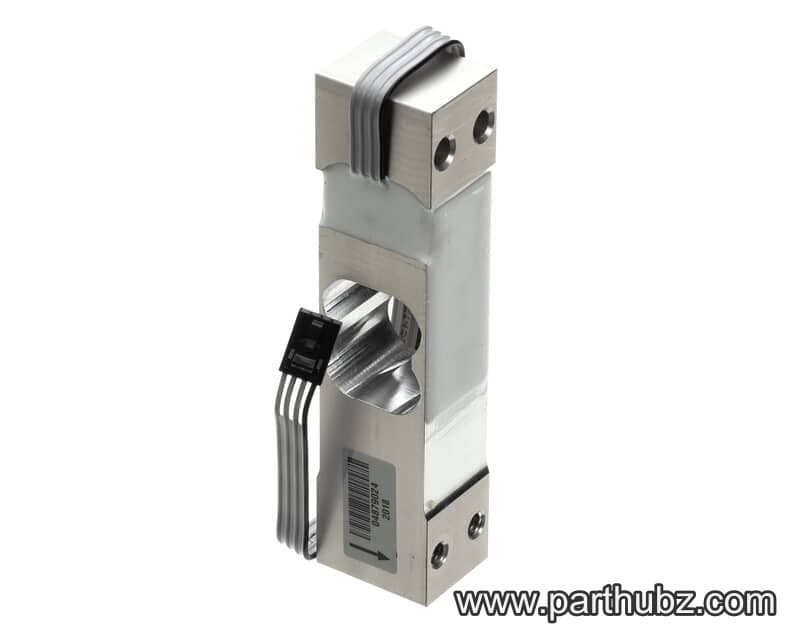 Available to Order